Aphasia
I came into his room carrying a bunch of potentially useful tools, including the SLUMS questionnaire, pictures, common items, an AAC communication board, a whiteboard, and an iPad. On the hospital bed lay a man with wide, glaring eyes; he didn’t speak or greet me.
…
When I tried to give him another hint by holding his hand to guide him, he seemed to get angry. He started glaring again and opened his mouth, saying slowly and deliberately, “I-O-I.” Beyond realizing he disliked being touched, I couldn’t comprehend what those three letters meant. So, I began asking him a series of related questions: Where does it hurt? Do you need to use the bathroom? Do you want to rest, eat, drink water, sit up, lie down, turn off the lights…? He shook his head repeatedly. The more questions I asked, the deeper his frown became. He anxiously grasped my hand, as if afraid I would get distracted, and strengthened his tone, saying “I-O-I” again. I was completely puzzled.
After several encounters, I finally discovered that “IO” combinations—IO, IOI, and I—represented all his attempts at verbal communication: lowering the bed, changing a diaper, turning off the light, moving the table, stopping the interaction. Among them, “lowering the bed” was his most frequent request.
Hence, he became known as “IO guy.”
Author: Wenyue (Speech Therapist )
Link: https://www.zhihu.com/question/280642898/answer/2923767255
The “IO guy” in the text has motor aphasia: he understands but cannot articulate or express himself. Aphasia, also known as dysphasia, is an acquired disorder of language ability caused by damage or trauma to the cortical language areas of the brain, leading to impairment or loss of speech communication skills. Aphasia patients are usually conscious, mentally alert, and free of articulation or phonation issues, but they have impaired or lost abilities in language symbol expression and comprehension, classifying it as a language disorder.
The staged goal of treating motor aphasia is to enable patients to express themselves with at least 75% accuracy using gestures, body language, or selecting words by pointing (yes/no). Wenyue, the author, says: “I needed to shift my mindset. When someone cannot effectively communicate with the outside world, they need tools—a fast and simple communication tool. As a speech therapist, my role is to find or design such a tool, rather than waiting for them to start speaking to design one.”
Differentiating and understanding are two separate language abilities. If the “IO guy” could learn to distinguish letters, he might use them to find words. Thus, in Wenyue’s case, giving him a text board allowed him to form words by combining letters:
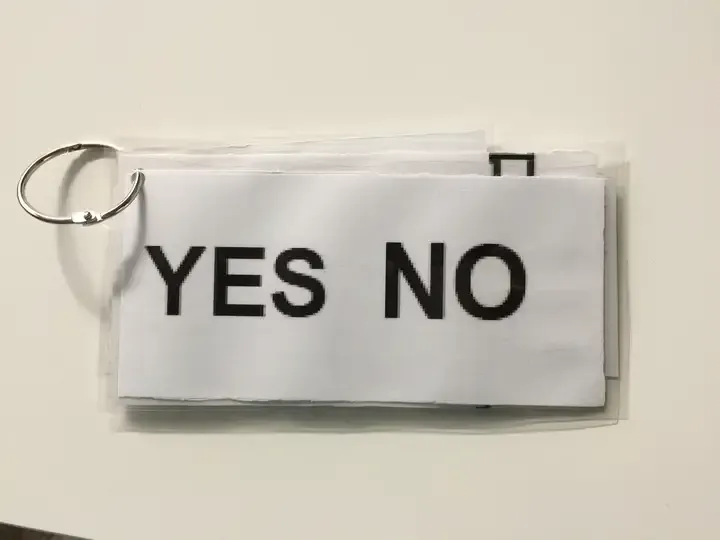
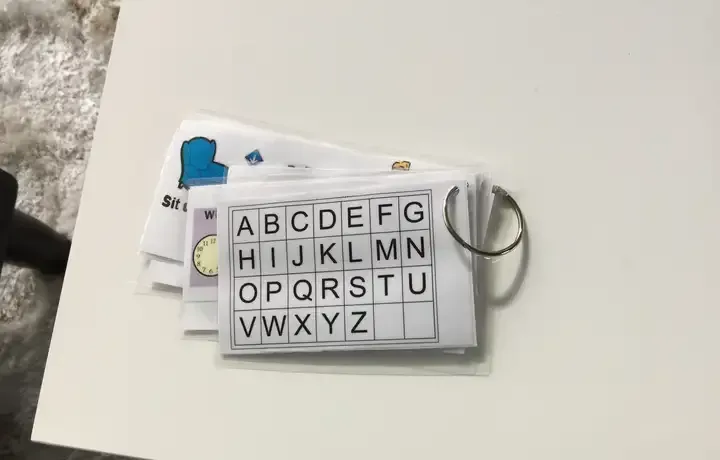
My project does not serve any medical purpose but was inspired by reading this semi-medical blog entry. It came to my mind that isn’t this basically a keyboard? At this stage in therapy, providing the IO guy with a keyboard could enable him to convey his thoughts. It’s already 2024 and HCI isn’t new.
Still, aphasia was a condition I had never explored before. Imagine that your reasoning and thoughts are completely normal, yet you lose the ability to communicate effectively in the final step. This is profoundly disorienting, infuriating, even devastating.
As a yapper, I tried to put myself in his shoes. What I imagined was even more severe than the example above. Aphasia is a despair-inducing condition, forcibly scrambling one’s communication with the outside world. The brain naturally craves to restore order. People tend to like things orderly; despite entropy always increasing, we still instinctively clean our desks, organize files, and buy new storage gadgets.
Just as the first step to tidying a room is selecting the nearest item and placing it in its proper spot, aphasia therapy encourages patients to select letters from a chaotic symbol pool, ultimately forming coherent expression.
Thus, while a keyboard might functionally serve this purpose, it cannot embody the therapeutic process itself. After all, we are creating art. Perhaps I can create something that represents the challenges of aphasia. My concept is to have a pool of letters/numbers and recognize a “grasp” gesture, ultimately forming a complete sentence.
Hand poses
The video mentioned in class really helped me with some hands-on experience with ml5.js and Hand Pose Detection with ml5.js: From Daniel Shiffman only 6 days ago.

Keypoints
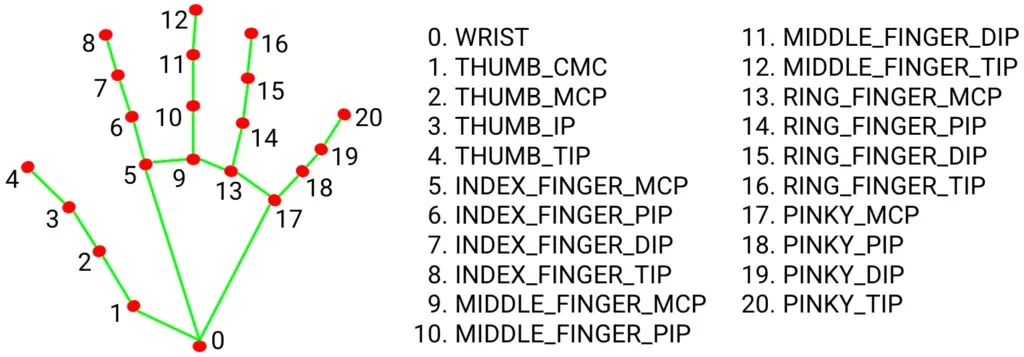
The first attempt was to understand how ml5’s hand pose library works. It turns out it uses 21 xy-coordinate keypoints, each with a confidence level (which should not be necessary for this application).
https://docs.ml5js.org/#/reference/handpose
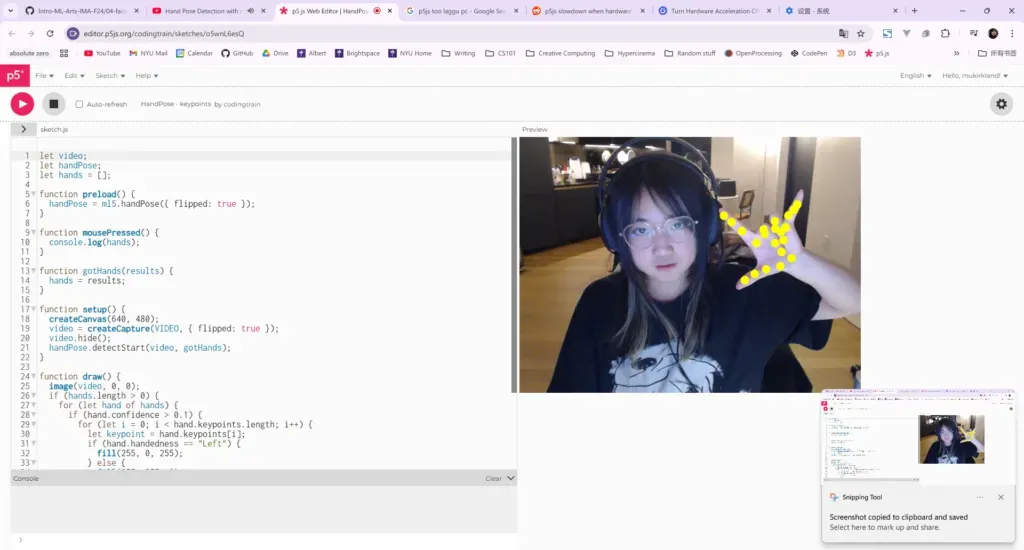
I followed along with Daniel Shiffman for a quick coding session. An interesting point is that, for me, the best way to learn a library is by typing out the code from an existing example. It’s a rather silly and old-school method, like using flashcards to memorize vocabulary. Writing this even reminds me of my CS101 professor, who often told us, “Don’t just copy my code.” But for me, this approach provides something beyond learning the documentation, parameters, or syntax of a library, which is gaining insight into the logic behind it. Learning how others approach using the library is the fastest way to connect all these elements.
(God I wish we can do syntax highlighting on WordPress.org)
let video;
let handPose;
let hands = [];
function preload() {
  handPose = ml5.handPose({ flipped: true });
}
function mousePressed() {
  console.log(hands);
}
function gotHands(results) {
  hands = results;
}
function setup() {
  createCanvas(640, 480);
  video = createCapture(VIDEO, { flipped: true });
  video.hide();
  handPose.detectStart(video, gotHands);
}
function draw() {
  image(video, 0, 0);
  if (hands.length > 0) {
    for (let hand of hands) {
      if (hand.confidence > 0.1) {
        for (let i = 0; i < hand.keypoints.length; i++) {
          let keypoint = hand.keypoints[i];
          if (hand.handedness == "Left") {
            fill(255, 0, 255);
          } else {
            fill(255, 255, 0);
          }
          noStroke();
          circle(keypoint.x, keypoint.y, 16);
        }
      }
    }
  }
}
Utilizing Certain Keypoints
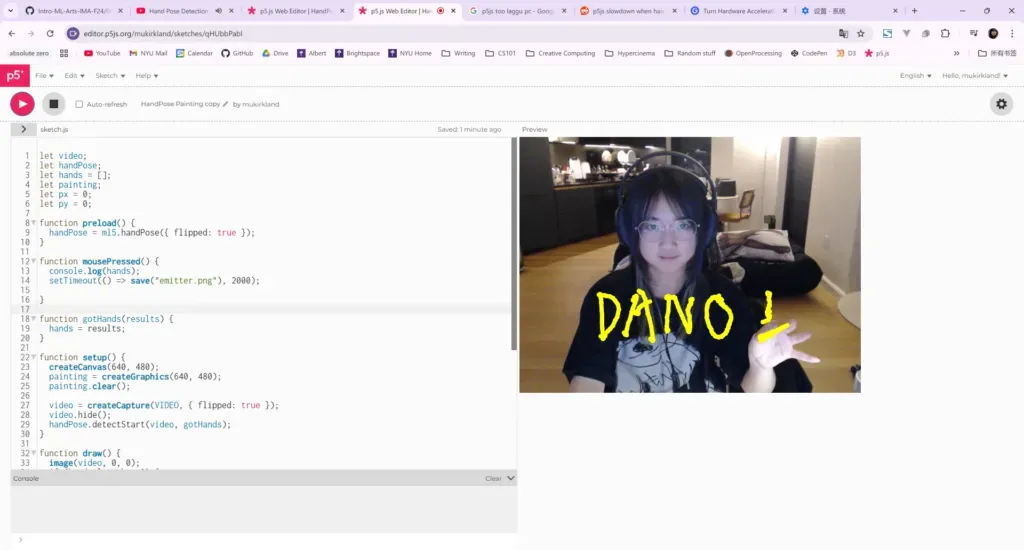
Dan Shiffman refers to this as “painting” because it enables drawing on the screen. To me, this code illustrates how to use specific keypoints to implement logic. I also found that to create a “pinch” gesture, only two points’ data is needed—the distance between them, which is straightforward.
Here are three key details:
1. Remember to flip the video:
video = createCapture(VIDEO, { flipped: true });2. Set a threshold—I personally prefer using 10 after testing, as it generates a visual with minimal false triggers (likely depending on camera resolution, lighting, etc.):
if (d < 20)3. Ensure you don’t miss adding layers for visuals; it’s like forgetting to refresh the package after FileIO in Java and thinking the output generation failed—create an additional layer:
Add a layer using createGraphics()let video;
let handPose;
let hands = [];
let painting;
let px = 0;
let py = 0;
function preload() {
handPose = ml5.handPose({ flipped: true });
}
function mousePressed() {
console.log(hands);
setTimeout(() => save("emitter.png"), 2000);
}
function gotHands(results) {
hands = results;
}
function setup() {
createCanvas(640, 480);
painting = createGraphics(640, 480);
painting.clear();
video = createCapture(VIDEO, { flipped: true });
video.hide();
handPose.detectStart(video, gotHands);
}
function draw() {
image(video, 0, 0);
if (hands.length > 0) {
let hand = hands[0];
let index = hand.index_finger_tip;
let thumb = hand.thumb_tip;
let x = (index.x + thumb.x) * 0.5;
let y = (index.y + thumb.y) * 0.5;
let d = dist(index.x, index.y, thumb.x, thumb.y);
if (d < 20) {
painting.stroke(255, 255, 0);
painting.strokeWeight(8);
painting.line(px, py, x, y);
}
px = x;
py = y;
}
image(painting, 0, 0);
}
Before ml5 comes in
After understanding ml5 and hand pose, this part became relatively straightforward—viewing the hand as a cursor and a pinch as “pressed.” So, I wanted to create a prototype with the mouse first because implementing the text-based effect seems more challenging than the ml5 part. (Or am I just procrastinating? Who knows)
Rough Coding
Canvas size: 616*616 (just my preference)
- 26 letters and numbers are generated at random positions in the top half of the screen.
- Letters can be clicked on, and a pressed state allows them to be dragged. Once they touch a text box (let’s say in the bottom quarter), they are added to the text box, effectively “typing” a letter.
- Letters dragged into the text box don’t disappear, and the next letter appends after it.
- Letters in the text box are center-aligned.
let letters = [];
let draggingLetter = null;
let offsetX = 0;
let offsetY = 0;
let textboxLetters = '';
function setup() {
  createCanvas(616, 616);
  // randomly generate text
  let chars = 'ABCDEFGHIJKLMNOPQRSTUVWXYZ0123456789';
  for (let i = 0; i < chars.length; i++) {
    let x = random(50, width - 50);
    let y = random(50, height / 2 - 50);
    letters.push(new DraggableLetter(chars[i], x, y));
  }
}
function draw() {
  background(255);
  for (let l of letters) {
    l.display();
  }
  if (draggingLetter) {
    draggingLetter.display();
  }
  // draw the box
  fill(230);
  rect(0, height * 3 / 4, width, height / 4);
  // box text
  fill(0);
  textAlign(CENTER, CENTER);
  textSize(32);
  text(textboxLetters, width / 2, height * 7 / 8);
}
function mousePressed() {
  // did we click?
  for (let l of letters) {
    if (l.isMouseOver()) {
      // create a copy of the letter
      draggingLetter = new DraggableLetter(l.char, l.x, l.y);
      offsetX = mouseX - l.x;
      offsetY = mouseY - l.y;
      break;
    }
  }
}
function mouseDragged() {
  if (draggingLetter) {
    // update location
    draggingLetter.x = mouseX - offsetX;
    draggingLetter.y = mouseY - offsetY;
  }
}
function mouseReleased() {
  if (draggingLetter) {
    // are we in the box?
    if (draggingLetter.y > height * 3 / 4) {
      // put letters into the box
      textboxLetters += draggingLetter.char;
    }
    draggingLetter = null;
  }
}
class DraggableLetter {
  constructor(char, x, y) {
    this.char = char;
    this.x = x;
    this.y = y;
    this.size = 32;
  }
  display() {
    fill(0);
    textSize(this.size);
    textAlign(CENTER, CENTER);
    text(this.char, this.x, this.y);
  }
  isMouseOver() {
    // are we still on the letter?
    let w = textWidth(this.char);
    let h = textAscent() + textDescent();
    return mouseX > this.x - w / 2 && mouseX < this.x + w / 2 &&
           mouseY > this.y - h / 2 && mouseY < this.y + h / 2;
  }
}
Code Explanation
- letters: Stores all randomly generated letter and number objects.
- draggingLetter: The letter object currently being dragged.
- offsetX and offsetY: The offset between the mouse click position and the letter position, used for smooth dragging.
- textboxLetters: The string of letters added to the text box.
- setup() function
- Defines a string, chars, containing 26 English letters and digits 0–9.
- Uses a loop to generate letters and numbers at random positions in the top half of the screen, storing them in the letters array.
- draw() function:
- Iterates over the letters array, calling each letter object’s display() method to render it.
- Draws the text box area, located in the bottom quarter of the screen, filling it with a light gray color.
- Sets text properties and uses textAlign(CENTER, CENTER) to center the text.
- Displays the letters added to the text box in textboxLetters.
- Mouse event functions:
- mousePressed(): When the mouse is pressed, it checks if any letter was clicked. If so, it creates a draggable copy of that letter and records the offset.
- mouseDragged(): When the mouse is dragged, updates the position of the dragged letter.
- mouseReleased(): When the mouse is released, it checks if the dragged letter is in the text box area. If so, it adds the character to textboxLetters and resets draggingLetter.
- DraggableLetter class:
- Properties:
- char: The letter or digit character.
- x and y: The coordinates of the letter’s position.
- size: Font size.
- Methods:
- display(): Draws the letter character.
- isMouseOver(): Checks if the mouse is over the letter, used for detecting clicks.
- display(): Draws the letter character.
- Properties:

After implementing the basic functionality, I wanted to make two improvements:
1. The letters sometimes overlap(car crash), which makes dragging difficult.
2. The letters could change color when being dragged.
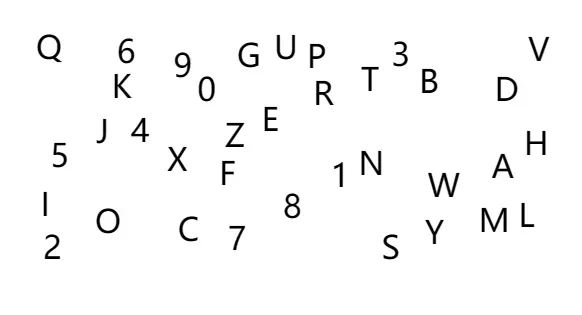
Anti Car Crash
I changed my setup logic as follows:
1. Each time a new letter is generated, an x and y position is randomly assigned.
2. A do…while loop checks if the new letter overlaps with any existing letters.
3. If an overlap is detected, a new position is generated until a non-overlapping position is found.
4. The letter size is set to 32, so a minimum distance of d < 32 is used to prevent overlap.
5. This dist method was something I learned from Daniel Shiffman’s video.
function setup() {
  createCanvas(616, 616);
  // randomly generate text
  let chars = 'ABCDEFGHIJKLMNOPQRSTUVWXYZ0123456789';
  for (let i = 0; i < chars.length; i++) {
    let x, y;
    let overlapping;
    // try again & again till nobody overlap
    do {
      overlapping = false;
      x = random(50, width - 50);
      y = random(50, height / 2 - 50);
      // check if overlap
      for (let l of letters) {
        let d = dist(x, y, l.x, l.y);
        if (d < 32) { // 32 is a threshold
          overlapping = true;
          break;
        }
      }
    } while (overlapping);
    // add letter
    letters.push(new DraggableLetter(chars[i], x, y));
  }
}
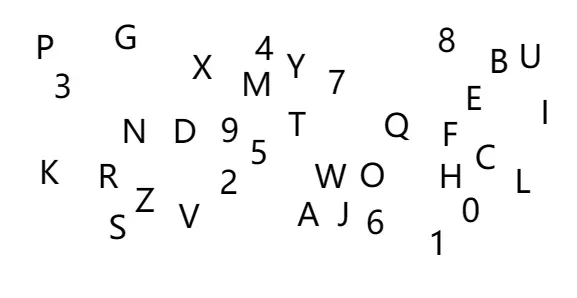
Did some testing and it looks fine.
Dragging Hint
It’s easy to add a conditional check in the display method. I added a condition to change the color when the letter is being dragged. I used Klein blue, I just like it.
display() {
    if (this === draggingLetter) {
      fill(0, 47, 167);
    } else {
      fill(0);
    }
    textSize(this.size);
    textAlign(CENTER, CENTER);
    text(this.char, this.x, this.y);
  }
Final Effect for Rough Coding

p5.js: https://editor.p5js.org/mukirkland/sketches/g5JO7UKrd
Incorporating ml5!!!
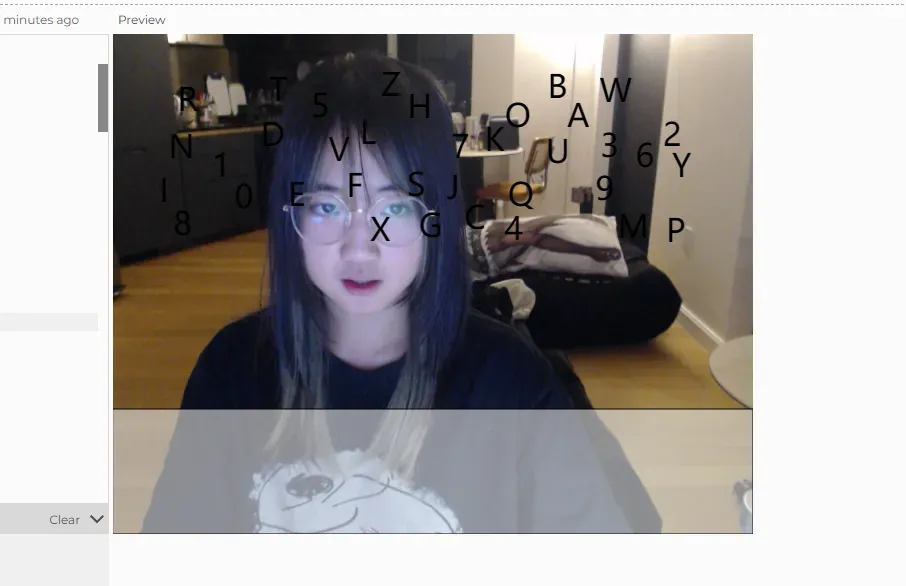
added the video at first
Debug
1st bug
everytime my finger appears, this just pops up, and the whole thing goes dead:
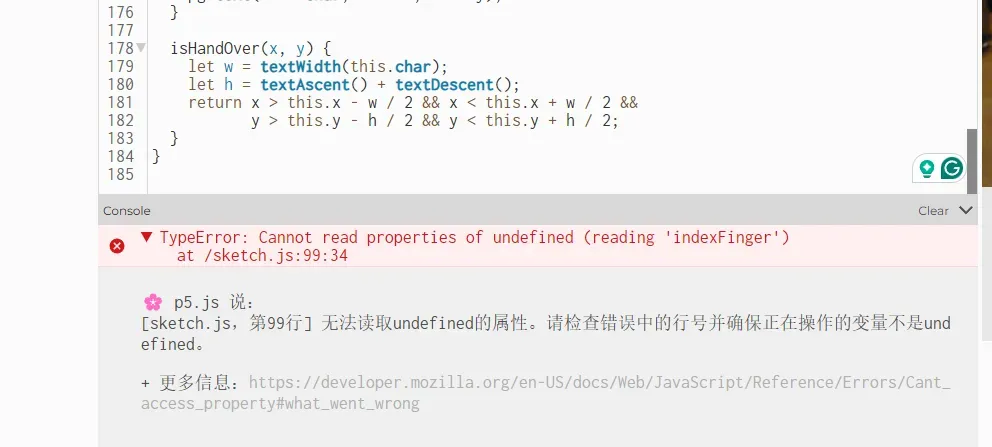
turns out its just a typo.
2nd bug
only one letter can be dragged

turns out its because my threshold is too small.
Adjustments
fonts and colors and whatever
could have done more here
I really want to make all the words wiggle, and change fonts. Haven’t figured this part out.
Final Code
let video;
let handPose;
let hands = [];
let letters = [];
let draggingLetter = null;
let offsetX = 0;
let offsetY = 0;
let textboxLetters = '';
let painting;
let px = 0;
let py = 0;
// hand pose
let isPinching = false;
let pinchStartX = 0;
let pinchStartY = 0;
function preload() {
  handPose = ml5.handPose({ flipped: true });
}
function setup() {
  createCanvas(616, 490);
  // for drawing the letters
  painting = createGraphics(616, 616);
  painting.clear();
  // initialize the camera
  video = createCapture(VIDEO, { flipped: true });
  video.size(616, 616);
  video.hide();
  handPose.detectStart(video, gotHands);
  // randomly generate text
  let chars = 'ABCDEFGHIJKLMNOPQRSTUVWXYZ0123456789';
  for (let i = 0; i < chars.length; i++) {
    let x, y;
    let overlapping;
    // try again & again till nobody overlap
    do {
      overlapping = false;
      x = random(50, width - 50);
      y = random(50, height / 2 - 50);
      // check if overlap
      for (let l of letters) {
        let d = dist(x, y, l.x, l.y);
        if (d < 32) { // 32 is a threshold
          overlapping = true;
          break;
        }
      }
    } while (overlapping);
    // add letter
    letters.push(new DraggableLetter(chars[i], x, y));
  }
}
function gotHands(results) {
  hands = results;
}
function draw() {
  image(video, 0, 0, width, height);
  painting.clear();
  for (let l of letters) {
    l.display(painting);
  }
  if (draggingLetter) {
    draggingLetter.display(painting);
  }
  painting.fill(0, 47, 167, 80);
  painting.noStroke();
  painting.rect(0, height * 3 / 4, width, height / 4);
  painting.fill(255);
  painting.textAlign(CENTER, CENTER);
  painting.textSize(40);
  painting.text(textboxLetters, width / 2, height * 7 / 8);
  image(painting, 0, 0);
  // hands interaction
  if (hands.length > 0) {
    let hand = hands[0];
    if (hand.index_finger_tip && hand.thumb_tip) {
      let index = hand.index_finger_tip;
      let thumb = hand.thumb_tip;
      let x = (index.x + thumb.x) * 0.5;
      let y = (index.y + thumb.y) * 0.5;
      let d = dist(index.x, index.y, thumb.x, thumb.y);
      if (d < 50) {
        // start hand pose
        if (!isPinching) {
          isPinching = true;
          pinchStartX = x;
          pinchStartY = y;
          // handPressed
          handPressed(x, y);
        } else {
          // handDragged
          handDragged(x, y);
        }
      } else {
        // stop
        if (isPinching) {
          isPinching = false;
          handReleased();
        }
      }
    }
  }
}
function handPressed(x, y) {
   // did we click? (for hands)
  for (let l of letters) {
    if (l.isHandOver(x, y)) {
      // create a copy of the letter
      draggingLetter = new DraggableLetter(l.char, l.x, l.y);
      offsetX = x - l.x;
      offsetY = y - l.y;
      break;
    }
  }
}
function handDragged(x, y) {
  if (draggingLetter) {
    draggingLetter.x = x - offsetX;
    draggingLetter.y = y - offsetY;
  }
}
function handReleased() {
  if (draggingLetter) {
    // are we in the box?
    if (draggingLetter.y > height * 3 / 4) {
      // put letters into the box
      textboxLetters += draggingLetter.char;
    }
    draggingLetter = null;
  }
}
class DraggableLetter {
  constructor(char, x, y) {
    this.char = char;
    this.x = x;
    this.y = y;
    this.size = 32;
  }
  display(pg) {
    if (this === draggingLetter) {
      pg.fill(0, 47, 167);
    } else {
      pg.fill(0);
    }
    pg.textSize(this.size);
    pg.textAlign(CENTER, CENTER);
    pg.text(this.char, this.x, this.y);
  }
  isHandOver(x, y) {
    // Set text properties before measuring
    painting.textSize(this.size);
    painting.textAlign(CENTER, CENTER);
    let w = painting.textWidth(this.char);
    let h = painting.textAscent() + painting.textDescent();
    // Debugging: Print width and height
    // console.log(`Character: ${this.char}, Width: ${w}, Height: ${h}`);
    return x > this.x - w / 2 && x < this.x + w / 2 &&
           y > this.y - h / 2 && y < this.y + h / 2;
  }
}
Final Video

p5.js: https://editor.p5js.org/mukirkland/sketches/pC9HVmRyy